Decide What You Are Editing
There are three different jobs here, and they fail in different ways. A makeup edit changes the surface of the face. A background edit replaces the space behind the subject. A relight changes the direction and colour of the light on the face and clothing. If you ask for all three at once, the model has to invent a new scene, a new face surface and a new light rig. That is possible, but it is much less stable than doing one job at a time.
Start with the job that matters most. If the photo is sharp and the background is boring, replace the background. If the face is flat, relight it. If the photo is already atmospheric but the look is plain, add makeup. Doing one job well beats doing three jobs approximately.
Fog Is a Lighting Problem
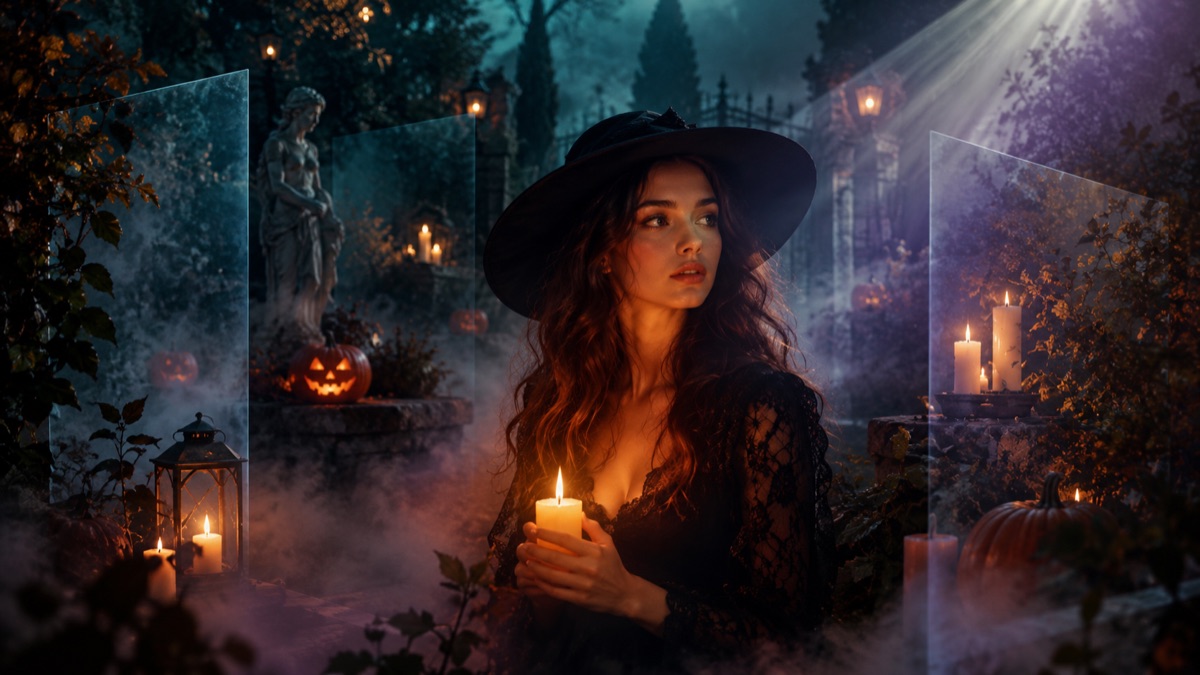
Fog does not sit on top of a person like a transparent layer. It catches light, hides the background at different depths and creates a soft edge around the subject. A prompt that says 'add fog' often produces a grey haze over the whole frame. A better prompt says where the fog is, what colour the light is and how thick it should be: 'low fog around the ankles, a warm lantern behind the subject, the background fading into blue haze'.
If the fog looks like a filter, remove one element. Keep either the fog or the background detail, not both. A dark background with a single warm light and a thin layer of fog reads as a real night photo. A busy background with five fog layers reads as a composite.
- Name the light source: lantern, candle, neon sign, car headlights.
- Name the fog height: ankles, waist, background only.
- Keep one colour for the key light and one for the fill.
- Avoid 'smoke' unless you want a sharper, more graphic effect.
Candlelight and Skin Texture
Candlelight is warm, directional and unstable. It creates a strong highlight on one side of the face and a deep falloff on the other. That is flattering for a Halloween portrait, but it also amplifies skin texture. If your original photo is already smoothed by a beauty filter, the model may produce plastic skin under candlelight. Upload the unedited photo if you have it.
Ask for realistic skin texture, visible pores and natural shadows. Do not ask for 'flawless skin' unless you want the AI look. A few small imperfections are what make the result believable. The same applies to fabric: ask for visible weave, slight wrinkles and a natural drape instead of a perfect costume render.
Background Replacement Without a Halo
The most common background failure is a halo around the hair. The model keeps a thin edge of the original background because it cannot separate fine strands from the scene. You can reduce this by choosing a background with a similar brightness to the original, or by asking for a soft rim light that hides the edge. A busy background with sharp lines makes the halo obvious.
If the halo persists, crop tighter or use a preset with a dark background. Dark backgrounds hide edge artifacts better than bright ones. Do not ask the model to 'cut out' the subject; that is a different task and usually produces a sticker-like result.
| Edit | Best source | Main risk |
|---|---|---|
| Makeup | Clean, evenly lit portrait | Contour lines look painted on |
| Background | Subject with simple hair outline | Halo around fine hair |
| Relight | Photo with soft, even light | Skin turns plastic |
| Fog | Dark or mid-tone background | Grey haze over the whole frame |
| Full restyle | Sharp, front-facing portrait | Identity drift |
A Five-Point Quality Check
First, check the light direction. Does the highlight on the face match the light source in the background? Second, check the shadow. Is there a shadow under the chin and nose that matches the new light? Third, check the hair edge. Is there a halo or a hard cut? Fourth, check the skin. Can you see texture, or does it look like a filter? Fifth, check the story. Does the scene make sense, or are there three unrelated light sources?
If two or more checks fail, do not keep editing the same image. Regenerate with a simpler prompt or a cleaner source. Editing a bad generation usually makes it worse.
What to Keep From the Original
Keep the pose, the framing and the expression. Those are the parts that make the photo yours. Change the light, the background and the styling. If the model changes the pose, the result starts to feel like a different photo rather than an edit. A simple prompt that says 'preserve the original pose and framing' helps more than a long list of costume details.
Finally, export at a reasonable size and avoid repeated compression. A screenshot of a screenshot loses the skin texture you worked to preserve. Download the original file and post that. Export at the largest size the model returns, then resize once for the platform. Do not run the image through three different apps; each pass adds compression and softens the skin texture. If you need a vertical crop, crop from the original export rather than from a screenshot. Keep a copy of the unedited source so you can compare and prove the edit if someone asks. A small before-and-after pair is also useful for social posts. If you are editing a photo for someone else, ask what they want changed before you generate. 'Make it spooky' can mean a dark background, a costume or a makeup look, and those are three different jobs. A single sentence of direction saves three generations. When you are finished, write down the preset name and the source photo so you can repeat the result next year.
Frequently asked questions
Can AI remove an object from a Halloween photo?
Some models can, but the presets here replace the background rather than performing object removal. A background replacement often solves the same problem with fewer artifacts.
Why does my edited face look plastic?
A smoothed source photo plus a strong relight produces plastic skin. Use the unedited photo and ask for visible skin texture, natural shadows and pores.
Should I edit or regenerate?
If the pose and framing are good, edit. If the face or anatomy is wrong, regenerate with a cleaner source. Editing a broken generation rarely fixes it.